
Trouble with your Piper’s Account?
Help with signing in to your Piper’s Account in Piper’s Metronome
This page covers the two most common Piper’s Account problems. Jump to the one you’re having:
- I didn’t get my verification email when I created my account
- I can’t sign in because I’ve forgotten my password
The exact screens you see may differ slightly depending on your device and on the version of the Piper’s Metronome app, but the general process is the same.
Didn’t get your verification email?
When you create a Piper’s Account, we email you to confirm your address
First, check your inbox
When you create a Piper’s Account, we send a verification email so you can confirm your address and finish setting up. It’s normally sent within a few seconds, but may take several minutes.
Check your inbox — and your Spam folder — for an email with these details:
- From: Braw Sound
- From email address: noreply@accounts.brawsound.com
- Subject: Verify your email for your Piper’s Account
Open it and tap the verify link inside to activate your account. If you find it in Spam, add noreply@accounts.brawsound.com to your safe-senders list (whitelist) so our emails arrive normally in future.
Still can’t find it? Use the password reset instead
We can’t currently resend the verification email — but there’s an easy workaround. Follow the Reset your password steps below (Steps 1–9). You can set the same password you chose when you signed up.
The password reset email also activates your account, so it does exactly the same job as the verification email.
A common cause: a typo in your email address
Very often the verification email never arrives simply because the email address was mistyped when signing up — so the email went to the wrong address.
If that might have happened, just sign in with your correct email address. Because no account exists yet under your correct address, the app will offer to create an account for you. That’s completely normal and nothing to worry about — go ahead and create it. Your earlier attempt with the mistyped address doesn’t cause any problems.
Can’t sign in? Reset your password
Send yourself an email link to set a new password
If you’ve forgotten your password — or you’re here because your verification email didn’t arrive — follow these steps to send yourself a reset link. (If you’re activating an account, you can set the same password you chose originally.)
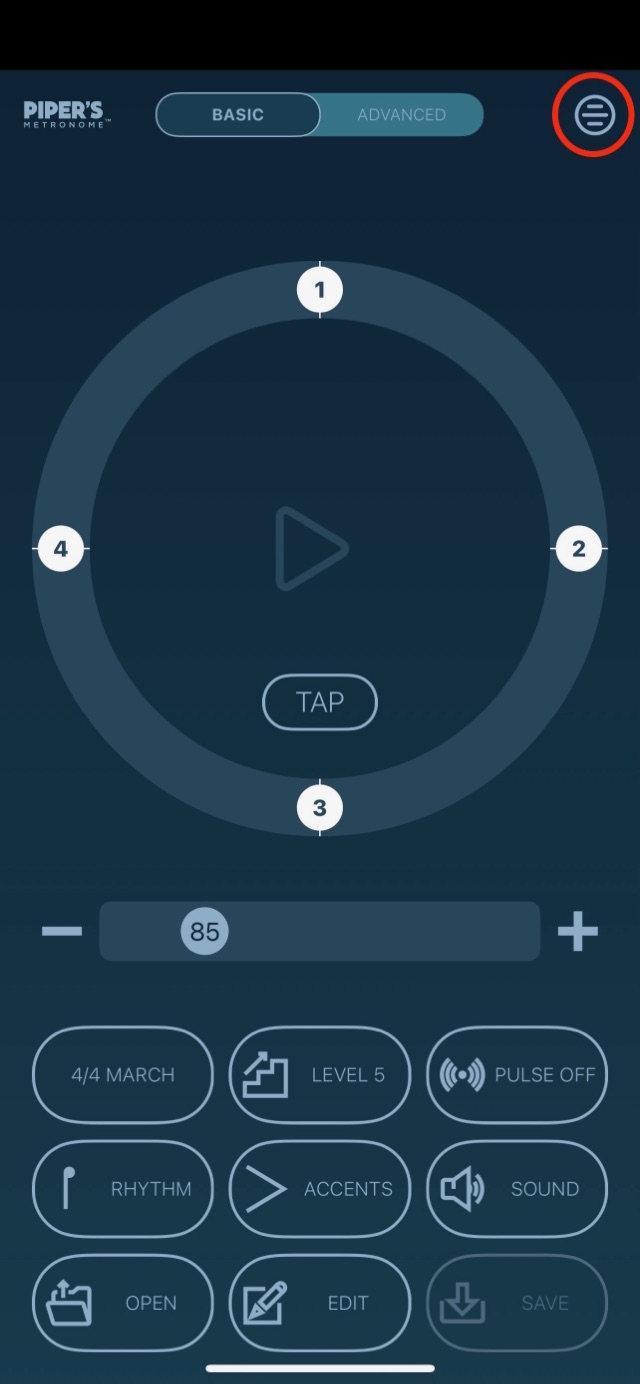
Step 1 — Go to the menu
Open the Piper’s Metronome app, then tap the Menu button in the top corner.
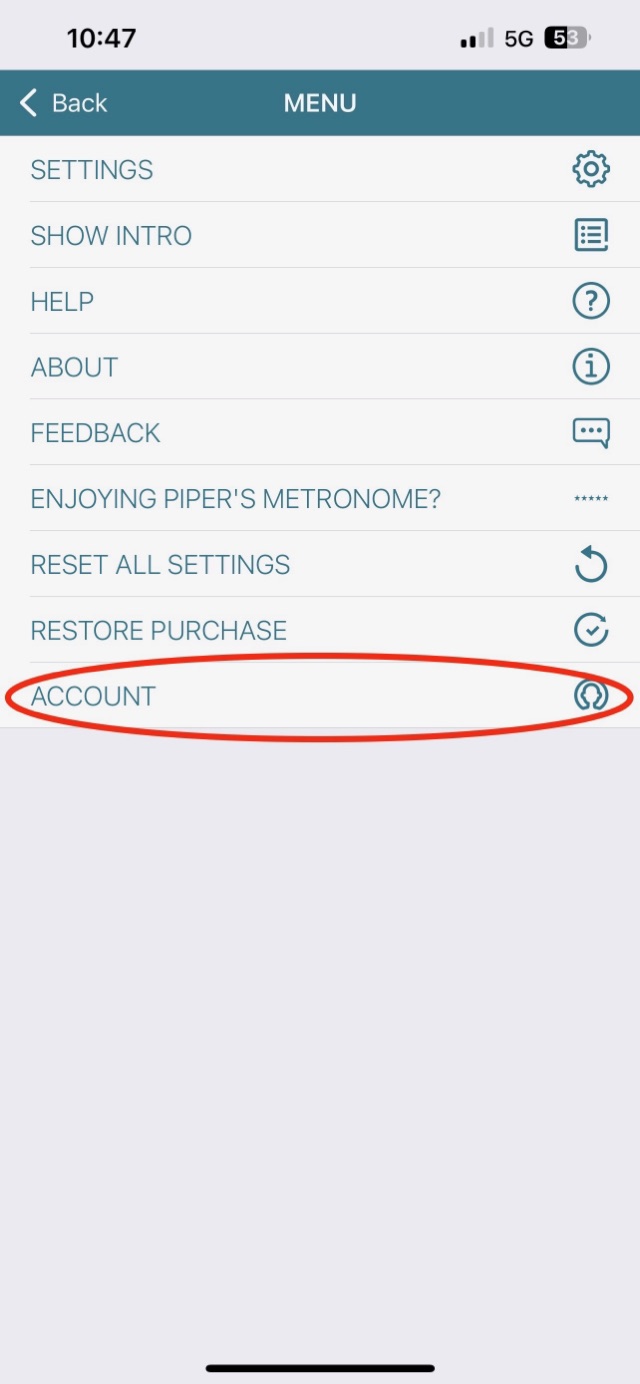
Step 2 — Tap the Account link
On the menu, tap Account (near the bottom of the list).
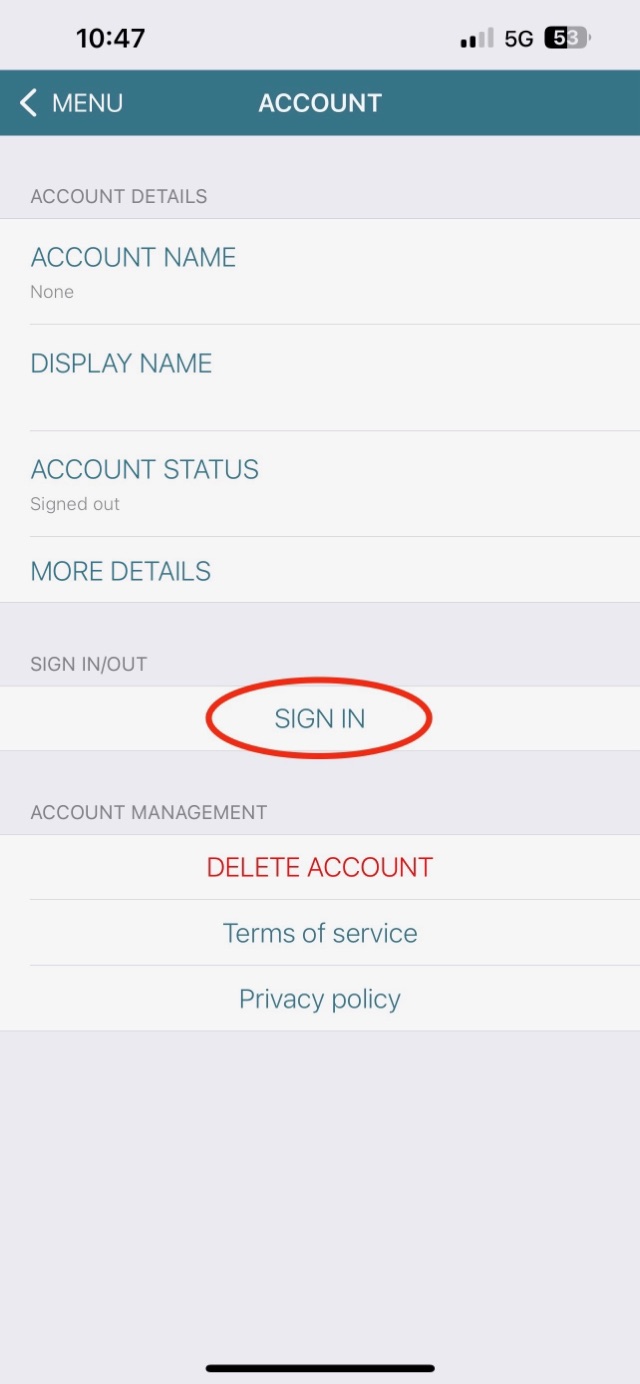
Step 3 — Tap the Sign In link
On the Account screen, tap Sign In.
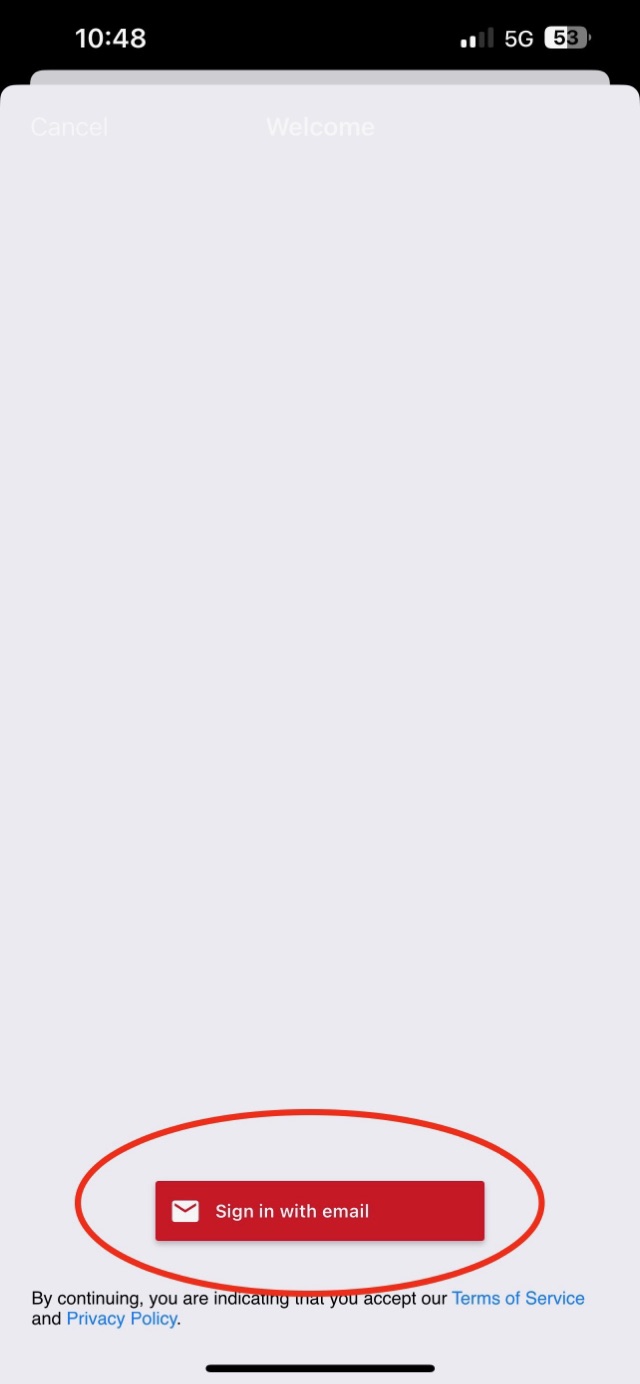
Step 4 — Tap Sign In With Email
Tap Sign in with email.
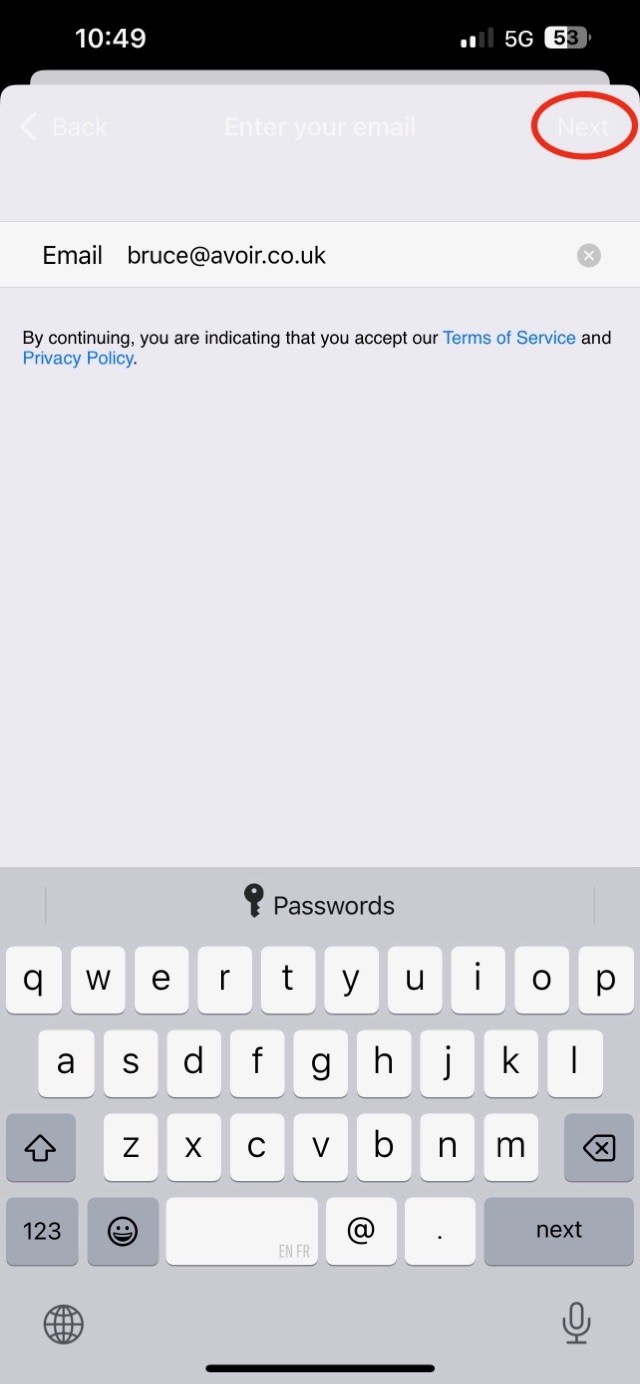
Step 5 — Enter your email, then tap Next
Type in your email address, then tap Next.
Double-check your email is typed in correctly. If it’s not right, tap the email to edit it.
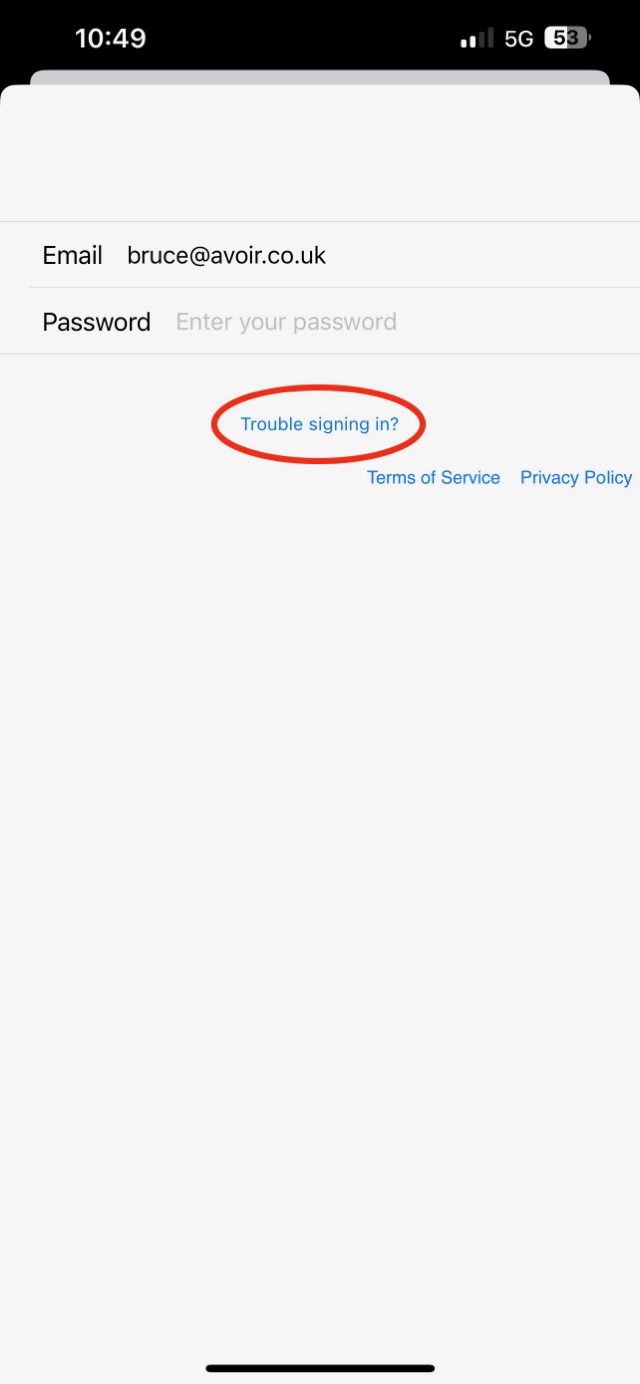
Step 6 — Tap Trouble Signing In
Tap Trouble signing in?
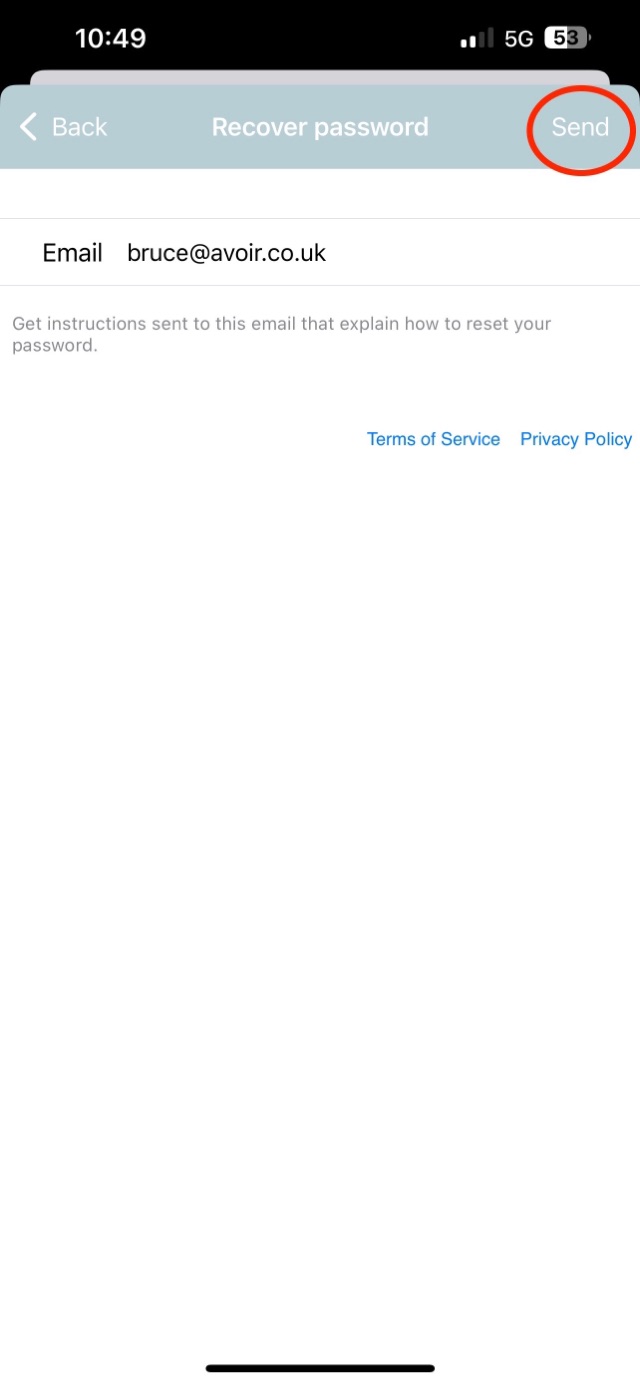
Step 7 — Send the password reset email
Double-check your email address is correct here — a common reason for not receiving the reset email is a typo in the address! Then tap Send.
Step 8 — Find the password reset email in your inbox
The password reset email is normally sent within a few seconds, but may take several minutes.
Check your email inbox for an email with the following details:
- From: Braw Sound
- From email address: noreply@accounts.brawsound.com
- Subject: Reset your Piper’s Account password
Once you find the email, open it, then tap the reset link inside to open it in your web browser. Follow the instructions there to reset your password. (If you’re doing this because your verification email didn’t arrive, this same link also activates your account.)
Important notes
- The link is only valid for 1 hour, and only the most recent link you send will work.
- If you can’t find the email, check your Spam folder, and try adding noreply@accounts.brawsound.com to your safe-senders list (whitelist).
Step 9 — Sign in with your new password
Follow steps 1–5 again to get back to the sign-in page, and this time sign in with your email and new password.
Be sure to double-check your email address and password are typed in correctly.
Still stuck? Get in touch and we’ll help you out.
— Bruce