Getting started
Getting started with the tuner
Calibrate the tuner to your Low A first, then check your chanter with the tuner mode button set to CHANTER, then lock to each drone in turn to tune it. You can place your device on a table or music stand, or hold it in your hand.
- Calibrate to your Low A. Tap the LOW A button, tap CALIBRATE NOW, then play Low A on your chanter. See Calibrate the tuner to your Low A.
- Check your chanter tuning. Set the tuner mode button at the top of the screen to CHANTER, then run up and down the scale or play a tune. Watch the average bars for each chanter note as they fill. See Check and tune your chanter.
- Tune your drones. Tap the tenor or bass drone's average bar: the mode button changes to TENOR LOCKED or BASS LOCKED. Your chanter and both drones can all be sounding: the tuner isolates the drone you are locked to and shows you whether it is in tune. To switch drones, tap the mode button to unlock, then tap the other drone's bar. See Tuning your drones.
- Tune the two tenor drones one at a time. Stop one tenor and tune the other, then swap.
Video walkthrough
Our short video walkthrough shows the tuner in use, including tuning your drones with the tuner in front of you.
QuantumNote: tuning while you play
Thanks to our QuantumNote technology, the Braw Bagpipe Tuner quickly and accurately analyses all your chanter notes, the tenor drone and the bass drone: all separately, all at the same time, while you are playing your pipes normally. This is far superior to traditional tuning methods that rely on holding a single sustained note, since even the best players adjust their blowing slightly when holding a note, so the reading you get is at a slightly different pressure from the reality of playing.
QuantumNote gives you the tuning when it matters the most: when you are playing! This applies to your drones as much as to your chanter: you can see your drones settle at real playing pressure, rather than at the slightly different pressure that often happens during the tuning process itself. QuantumNote is also aware of bagpipe ornamentation, and of the interaction of drones and chanter, and uses this knowledge to help build an accurate tuning result.
What QuantumNote gives you
- Chanter, tenor and bass tracked separately and in parallel: see all three voices settle at once.
- Tune your chanter and your drones while playing: great for going round the members of a band, or for tuning your own pipes without having to stop and hold individual notes.
- More accurate tuning: get the tuning as it actually sounds when playing, at real playing pressure.
What's on the tuner screen
The tuner screen has a main gauge at the top, which shows the note you are playing, and average bars below it for each chanter note and both drones. The picture shows each part, numbered, with what it does listed below it.
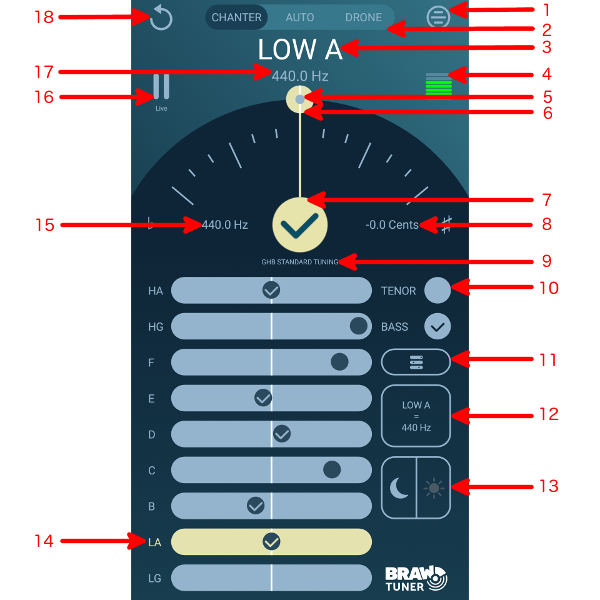
- The menu.
- The tuner mode button: CHANTER, AUTO or DRONE (on iPhone and iPad, DRONES). It selects what the display focuses on (the chanter notes, the drones, or both) and adjusts the bar layout to match.
- The name of the note you are playing (or, if the gauge is locked to a note, the name of the locked note).
- The volume gauge. It shows the volume of the voice currently on the main gauge (chanter, tenor or bass). Tap it to set a cut-off volume below which the tuner will not respond. Touch and hold it to recalibrate it.
- The small blue circle shows the instantaneous frequency of the note you are playing. Straight up is in tune, to the left is flat and to the right is sharp.
- The larger yellow indicator, with a dark arrow at its centre, shows the averaged frequency of the note you are playing. The arrow points to the precise reading; the width of the yellow halo around it shows how stable the note is (wide is unstable, more circular is stable).
- The in-tune indicator shows a tick when the average frequency of the note you are playing is within a few cents of being in tune, and red otherwise.
- How sharp or flat the note you are playing is, in cents (negative numbers are flat, positive are sharp).
- The chanter tuning scheme in use.
- An average bar in compressed form. The display shown is in chanter mode, so the drones' average bars are condensed.
- The TUNING SCHEME button, to choose a chanter tuning scheme.
- The LOW A button, to calibrate your Low A. Probably the most important button on the screen!
- The theme button.
- An average bar in full form. A circle to the left of the white line is flat, and to the right is sharp. See How the rolling averages work.
- The frequency in Hertz of the note you are playing.
- The pause button freezes the tuner: it doesn't update until you tap the button again.
- The reference frequency for the note you are playing. When you play Low A, this is the result of your calibration; for the other notes, it is adjusted to match.
- Tap to reset the averages.
Low A
Calibrate the tuner to your Low A
Tap the LOW A button, tap CALIBRATE NOW, and play Low A on your chanter. The Low A on your chanter (or, if you are in a band, probably your Pipe Major's chanter) is the reference point for all the tuning, so calibrate the tuner to it before doing anything else.
The LOW A button shows the frequency your Low A is currently calibrated to. Tapping it opens SET REFERENCE LOW A, with three options:
- CALIBRATE NOW
- SET TO CURRENT AVERAGE, with the current average beside it
- SET MANUALLY
Calibrate now
This option listens to the note you are playing and uses it as the reference. You need to do this at least once to set the tuner to your chanter.
- Strike up your pipes, then tap LOW A and CALIBRATE NOW.
- The screen shows PLAY LOW A NOW - GET READY, with a countdown of a few seconds to prepare. Play Low A on your chanter, with your chanter about 30cm from the microphone, and do your best to get it steady.
- The calibration recording then takes a few seconds more (the screen shows PLAY LOW A NOW; on Android, PLAY LOW A NOW - CALIBRATING). Hold your Low A steady.
When the calibration has finished, you return to the main screen automatically, and your Low A is used as the reference from then on. To stop before the end, tap CANCEL.
Set to current average
This option uses the current Low A rolling average as your calibrated Low A, and shows that frequency beside the option, for example SET TO CURRENT AVERAGE (480.2 Hz). It is useful for making continual adjustments to your Low A as you play.
In the Braw Bagpipe Tuner, this option needs Premium.
Set manually
This option lets you type in the frequency in Hertz that you want to use as your calibrated Low A.
In the Braw Bagpipe Tuner, this option needs Premium.
Re-calibrating
The frequency of your Low A (and of the rest of the notes) varies as you keep playing, as moisture and heat change, so for longer tuning sessions make sure you re-calibrate to your Low A from time to time. The same applies, of course, if you leave your pipes for more than a few minutes without playing them.
What frequency should my Low A be?
Typical Low A values for standard modern Highland pipes range from 466 Hz to 490 Hz. For a typical practice chanter, the Low A is normally around 220 Hz.
You don't need to know yours before you start: calibrate the tuner by playing Low A, and the LOW A button shows the frequency it measured.
Tuning
What does the tuner mode button do?
The tuner mode button at the top of the tuner screen changes the bar layout, that is, which group of average bars is shown in full, so you can focus the display on what you are tuning. It does not change what the tuner listens to: all voices are detected the same way whichever mode you choose.
- CHANTER shows the chanter's average bars in full.
- DRONE (on iPhone and iPad, DRONES) shows the drones' average bars (tenor and bass) in full.
- AUTO switches the display between chanter and drones automatically.
- NOTE LOCKED TO …, TENOR LOCKED or BASS LOCKED shows that the main gauge is locked to a single note or drone. Tap the button to unlock. See Lock the gauge to one note or drone.
How the rolling averages work
As you play, the tuner keeps a rolling average of the tuning of each note, and shows it on that note's average bar. As well as the main gauge, there is an average bar for each note on the chanter, one for the tenor drone and one for the bass drone, and the bar of the note you are playing is highlighted.
Using our QuantumNote technology, these averages are calculated and kept automatically as you play. By default, each average covers up to the last 4 seconds of that note, and only very short stretches of a note are needed to add to it.
The chanter, tenor and bass averages are tracked in parallel and independently: when you are playing your full pipes, the chanter bars, the tenor bar and the bass bar all update at the same time. There is no need to switch mode or lock to a drone to build a drone average; everything is tracked live as you play.
On the main gauge, the rolling average for the note you are playing is also shown by the yellow indicator, with a dark arrow at its centre.
To reset the rolling averages, tap the reset button at the top left of the screen.
Premium
In the free version of the Braw Bagpipe Tuner, half of the averages are locked (see What is the forbidden sign over some of the rolling average gauges?). Premium gives you all the rolling averages, and lets you change other averaging settings, such as the averaging time: tap SETTINGS in the menu, then Average Duration (s).
What is the forbidden sign over some of the rolling average gauges?
The free version of the Braw Bagpipe Tuner is limited to showing half of the rolling averages, and the forbidden sign marks the ones that are locked. You can upgrade to Premium to remove this restriction.
In the free version:
- the averages for Low A, C, E, High G and the tenor drone are shown;
- the averages for Low G, B, D, F, High A and the bass drone carry the forbidden sign. For those notes the main gauge shows no average or in-tune tick, and tapping their bars opens the upgrade screen instead of locking the gauge to that note.
Lock the gauge to one note or drone
Tap one of the average bars to lock the main gauge to that note or drone, so that the gauge shows only that note. The bar you selected is highlighted, and its note is shown on the main gauge. To unlock, tap the tuner mode button.
When the gauge is locked, the tuner mode button shows what it is locked to: NOTE LOCKED TO HA (or LG, LA, B and so on) for a chanter note, or TENOR LOCKED or BASS LOCKED for a drone. A small pulsing padlock appears next to the note name on the main gauge.
While the display is locked to one note, the averages for the other notes still update as you play.
Reading an average as a number
When you are not playing and you tap an average bar, the main gauge shows that note's average, so you can read the rolling average as a number in Hertz (Hz) and in cents.
Locking to a drone
Locking to the tenor or the bass is how you tune your drones: see Tuning your drones.
In the free version of the Braw Bagpipe Tuner, only the notes whose averages are shown can be locked: tapping a bar with the forbidden sign opens the upgrade screen.
Check and tune your chanter
Set the tuner mode button at the top of the screen to CHANTER, so that the bottom panel shows the chanter's average bars. Then play a tune that covers all the notes of the chanter, and look at the average bars: we recommend this as the way to establish the tuning of your chanter.
Your device can sit on a table or music stand at a comfortable distance: there is no need to hold it close to the chanter.
Holding individual notes
You can also hold individual notes and watch both the average and the instantaneous indicators on the main gauge. Be aware, though, that you need to try hard to keep your pipes at the same pressure as when you play. That is difficult to do, even for experienced players, who may adjust their blowing without realising it to correct the tuning.
Choosing a chanter tuning scheme
Tap the TUNING SCHEME button, then tap the scheme you want in the list (SELECT TUNING SCHEME; on Android, Select Chanter Tuning). The scheme in use is shown under the main gauge.
In the Braw Bagpipe Tuner, choosing a tuning scheme needs Premium.
There are four schemes to choose from. Let us know if there are others you would like added.
- GHB Standard: the default scheme, optimised for the Highland pipes (a slightly tweaked version of Just Intonation, below).
- Just Intonation: a well-known tuning scheme that matches harmonics using 5-limit integer ratios, to give a sweet sound against the drones.
- Seumas MacNeill: a tuning scheme for the Highland pipes proposed by Seumas MacNeill. A form of Just Intonation, but with a distinctly sharp D and High G.
- Equal Temperament: the standard tuning scheme used by other instruments. It lets instruments play in different keys across all octaves by compromising on the sweetness of the sound. It is not generally suitable for the pipes, unless you are playing with other instruments.
Tuning your drones, on your own or in a band
Tap the tenor or bass drone's average bar to lock the tuner to that drone, play your pipes as normal, and adjust the drone until the main gauge shows it in tune. Your chanter and the other drones can keep sounding: when you are locked to a drone, the main gauge isolates that drone clearly.
The tuner tracks the chanter, tenor and bass averages simultaneously and independently: when you play your full pipes, the tenor and bass average bars build up in real time alongside the chanter's. Locking to a drone is for fine tuning it on the main gauge.
Tuning your own drones
Place your device on a table or music stand at a comfortable distance: there is no need to hold it close to a drone. Play your pipes as normal. Your chanter and both drones can all be sounding: the tuner ignores everything except the drone you are locked to.
- Calibrate your Low A as normal (see Calibrate the tuner to your Low A).
- Tap the Tenor or Bass average bar (on Android, TENOR or BASS), at the right under the main gauge (10 on the tuner screen), to lock the tuner to that drone. The tuner mode button changes to TENOR LOCKED or BASS LOCKED.
- When tuning your tenor drones, tune the two tenor drones individually. When locked to the tenor, the tuner picks up whichever tenor is sounding, but it cannot tell the two tenors apart. Tune them one at a time: stop one tenor, tune the other, then swap.
- To tune, use the main gauge at the top. First concentrate on the small blue circle on the gauge (5 on the tuner screen), which shows you the instant reading for your drone. Try to get this wee blue dot to the centre of the gauge. If the wee blue dot is left of centre, shorten your drone. If it is right of centre, lengthen it.
- Once the wee blue dot is close to the centre of the gauge, shift your attention to the yellow indicator on the gauge. It shows a smoothed version of the wee blue dot, and you now want to fine tune to get the arrow at its centre to the centre of the gauge. The width of the yellow indicator just shows how much the blue dot is moving about (if it moves about a lot, concentrate on your blowing to keep a steady pressure).
- To switch to the other drone, tap the tuner mode button to unlock, then tap the other drone's average bar.
In the free version of the Braw Bagpipe Tuner, the bass drone's bar carries the forbidden sign: tapping it opens the upgrade screen. Locking to the tenor works in the free version.
The blue dot first, then the yellow indicator
When tuning your drones, watch the small blue circle on the main gauge and try to get it in the middle. Then, for fine tuning, try to centre the larger yellow indicator.
Tune your bass first
Tune your bass first, as it is easier for the tuner to isolate.
Play any note
You can play any note you like when tuning your drones.
Pipe band tuning, with other pipers playing
When you are tuning another piper's drones in a pipe band, with other pipers playing at the same time, you do still need to hold the device's microphone close to the drone you are tuning, so that the tuner picks up that drone above the surrounding noise.
Locking to the drone (tap its average bar) is still the recommended choice here: it helps the tuner stay focused on the drone you are tuning, rather than picking up notes from other players' chanters. DRONE mode (on iPhone and iPad, DRONES) is also a reasonable choice if you want to switch between drones quickly without unlocking each time.
Holding a phone or tablet close to a drone for a long time can be physically tricky. Many pipers find a clip-on external microphone helpful here: see our InTuneMic recommendation.
Pausing the tuner
Tap the pause button to freeze the tuner: it then doesn't respond to any sound until you tap the button again. The label under the button changes from Live to Paused while the tuner is paused.
In a noisy place, such as a pipe band, it can be useful to pause the tuner so that you can study the results without it reacting to other noise.
Switching the tuner's theme for indoors or outdoors
Tap the theme button, with the moon and the sun on it (13 on the tuner screen), to switch between the two themes:
- the standard theme (the moon), intended for indoor use;
- a high-contrast theme (the sun), intended for outdoor use, to make the display easier to see in sunlight.
Where there is room on the screen, the button's two halves are labelled INDOOR MODE and OUTDOOR MODE (on Android, INDOOR and OUTDOOR).
Microphones
Using an external microphone
You don't need a separate microphone: the tuner works well with the built-in microphone on your device, which on modern phones and tablets is of high quality. An external microphone can be useful, though, especially in noisy places where the tuner might not be able to pick out your pipes from other sounds.
In general, when you attach a compatible external microphone to your device, it becomes the default microphone, and the tuner switches to it automatically. This is standard behaviour on Apple and Android devices, not something the tuner does.
While we don't provide direct support for troubleshooting external microphones, and cannot guarantee that any particular combination of microphone, device and operating system version will work, here are some general guidelines which we hope you will find useful.
Recommended for noisy places: the InTuneMic
The InTuneMic is a wireless clip-on instrument microphone for smartphones, designed specifically for use with the pipes. It is sold and supported by Jori Chisholm at bagpipelessons.com.
In our tests the InTuneMic performed very well, and we are happy to recommend it as our external microphone of choice for the Braw Bagpipe Tuner. It comes into its own where the built-in microphone has the hardest job:
- Pipe band tuning: when several pipers are playing at once, clipping the InTuneMic close to the drone or chanter you are tuning gives the cleanest possible signal and the most accurate readings.
- Outdoor and noisy places: placing the microphone close cuts through the wind, traffic and other noise that can interfere with the built-in microphone.
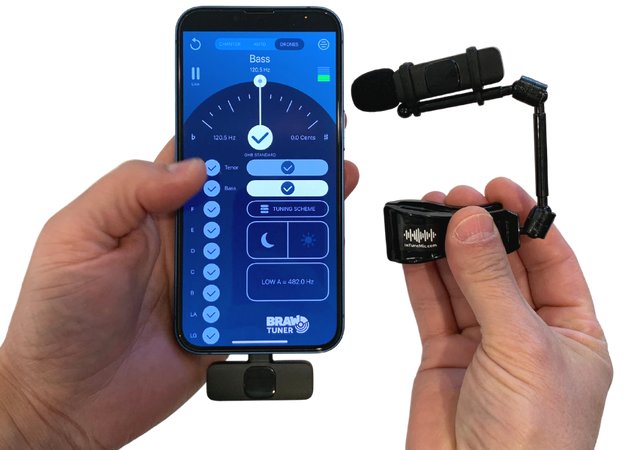
Jori Chisholm demonstrates using the Braw Bagpipe Tuner with the InTuneMic to tune your chanter and drones. It is an excellent and thorough video, with some useful general tips, and well worth a watch even if you don't have the InTuneMic.
Recorded before version 3
This video predates version 3 of the Braw Bagpipe Tuner, so it doesn't show the newer way of tuning your drones (the tuner on a table in front of you, tapping a drone's bar to focus on it). It is still well worth watching for its general tuning tips.
Bluetooth microphones
Bluetooth microphones should generally work as long as they appear as the default microphone on your device. Be aware, though, that noise filtering, automatic volume adjustment or other audio processing may interfere with the sound the tuner receives. It is best to turn these features off when using a tuning app.
Clip-on microphones that pick up vibration
Some clip-on microphones work partly by picking up the sound through close contact and vibration. Some users report success with these.
Microphones with a 3.5mm jack
In general you can use an external microphone through the 3.5mm headphone port on your device (or through the Lightning port on more recent Apple devices). No further setting up is needed: just plug it in and play.
The microphone's jack must be compatible with your device. For Apple devices and the vast majority of Android devices, this means the jack must have 3 black rings on it, rather than just 2. In the picture below the right-hand jack is the compatible one; the left-hand jack will typically not work.
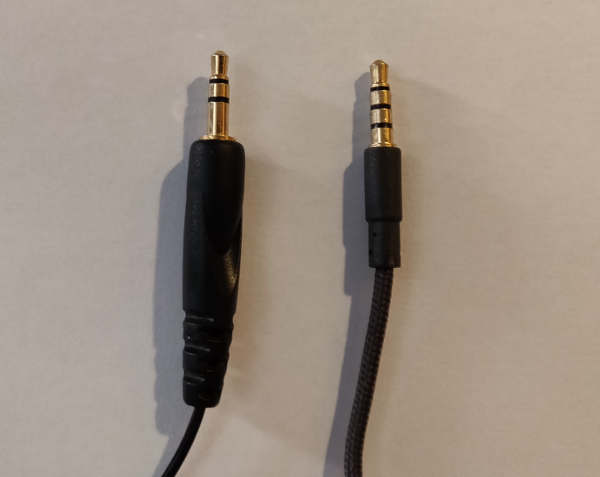
If you have a microphone with a 2-ring jack that you want to use (like the left-hand example above), you can use an adapter. A couple of examples on Amazon:
Why is the tuner not responding?
Check the following:
- Microphone permission. Check your phone or tablet's settings and make sure you have allowed the app to use the microphone.
- Paused. Check the tuner is not paused: if the label under the pause button reads Paused, tap the button again.
- Locked to a note. Make sure the tuner is not locked to a single note: tap the tuner mode button if it shows a lock label such as NOTE LOCKED TO HA, TENOR LOCKED or BASS LOCKED.
- Low A. Calibrate the tuner to your Low A: tap the LOW A button, tap CALIBRATE NOW, and play Low A on your chanter.
Without the microphone permission
On iPhone and iPad, the Braw Bagpipe Tuner shows Can't Record with this message:
This app must have microphone permissions to work. The tuner needs to record and analyze audio to detect the tuning of your instrument. Please enable from settings.
On Android, the Braw Bagpipe Tuner asks for the permission when it starts, and closes if you don't allow it.
Premium
What Premium adds, and what it costs
Premium opens up every note and gives you the calibration, schemes and controls to match your pipes. To upgrade, open the menu and tap Upgrade to Premium, or tap any feature that needs Premium. The upgrade screen, Tune to your pipes, lists what Premium adds:
Upgrading is managed safely and securely through the Apple App Store and Google Play. If you decide not to upgrade, tap Maybe later.
What it costs
The exact cost depends on your currency and local taxes, which the Apple App Store and Google Play manage. You are shown the exact price when you start the purchase in the app. Don't worry: you see the price before you actually buy!
There are two ways to buy Premium, side by side on the upgrade screen:
- a yearly subscription: its button shows the price followed by / year, and "Recurring annual subscription". It renews every year, and you can cancel it any time in your App Store settings (on Android, your Play Store settings);
- a one-time purchase: its button shows the price followed by one-time, and "Pay once, keep forever".
If the store can't be reached, the upgrade screen says "App Store unavailable, please try again later." (on Android, "Google Play unavailable, please try again later.").
Family Sharing is supported: see How many devices can use my upgrade, and can I share it with my family?.
How many devices can use my upgrade, and can I share it with my family?
You can run the upgraded app on as many devices as you like, as long as each device is signed in with the Google Play or Apple account you bought the upgrade with.
An upgrade bought on Apple doesn't carry over to Android, or the other way round: see Moving my upgrade to a new store account, or between Apple and Android.
Sharing with your family
Yes, you can share your upgrade with your family (or with a second account of your own) by using the family sharing provided by the Google Play and Apple app stores.
Moving my upgrade to a new store account, or between Apple and Android
Google and Apple don't let you move a purchase to a different account, or between their two stores. For a new store account there is a workaround through Family Sharing; failing that, get in touch with us.
A new store account
Google and Apple do not let you move purchases to a different account with them.
There is a workaround on both stores, using Family Sharing: see Sharing with your family.
Failing that, please get in touch with us with proof of purchase, and we will try to help you out.
Changing between Android and Apple
Sorry, this is a source of frustration for us, but because Google and Apple are in competition, they don't allow us to share purchases between their stores, and we risk being banned if we unlock the apps outside their purchase mechanisms.
On one platform, you can run the app on as many devices as you want.
Buying outside the app stores
Sorry, no. Providing the ability to download, manage payments and deal with licensing of the app ourselves would mean implementing a lot of what the app stores do, which is just not feasible.
My upgrade has stopped working
You need to be signed in on the device with the same Google Play or Apple App Store account you bought the upgrade with. Once you are, the app detects this and upgrades automatically.
To be sure, first uninstall the tuner, then check that your app store is showing the correct account and that you can see the tuner listed in your purchases. Then install the tuner using this account.
Restoring your purchase on iPhone and iPad
If the app does not upgrade automatically, open the menu and tap RESTORE PURCHASE (it is shown while the app isn't upgraded). The tuner checks with the App Store and shows APP STORE SYNC COMPLETE, or PROBLEM SYNCING, TRY LATER if it couldn't reach it.
More
Can I use the tuner with other types of pipes?
Yes, you can use the tuner to help you tune various other types of pipes. Generally the key that the pipes are in does not matter: just calibrate the tuner to the Low A (or its equivalent) on your chanter.
Scottish small pipes
You can use the tuner for small pipes in any key. For the chanter, it works as normal: just calibrate the tuner to the Low A on your chanter, though you may need to move the chanter a bit closer to the microphone to pick up Low G properly.
The drone tuning is a bit different, though. On the small pipes the tenor drone is often at the same pitch as the chanter's Low A, with the bass one octave lower (whereas on the Highland pipes the tenor is one octave below Low A and the bass two octaves lower). This means that the tenor shows up as Low A on the tuner, and the bass as the tenor. There is no setting on the tuner for the middle drone on the small pipes.
Border pipes
The tuner should work as normal for Border pipes in any key: just calibrate it to the Low A on your chanter.
Other pipes
For other types of pipes, it depends on what notes and type of scale the chanter uses, but generally the key the pipes are in does not matter: just calibrate the tuner to the Low A (or its equivalent) on the chanter.
Does the tuner work on Windows or a Mac?
We don't directly support Windows, but some users have run the tuner there in an Android emulator. On a Mac, it should be possible to run the tuner on more modern Macs with Apple silicon.
Windows, in an Android emulator
We don't directly support this, but anecdotally it seems that some users have made it work. However, until Google and Microsoft do some sort of deal, it is not possible to purchase or unlock the tuner using the Google Play store on the emulator.
Mac
It should be possible for users with more modern Macs, with Apple silicon, to run the tuner app.
Videos and other resources
There are good videos and tutorials about the tuner out there, and we've gathered some of them here. Please get in touch if you know of any others.
- Our own short walkthrough of the tuner is in Getting started with the tuner.
- Jori Chisholm's video on using the tuner with the InTuneMic, our recommended external microphone, is in Using an external microphone. It is an excellent and thorough video, with some useful general tips, and well worth a watch even if you don't have the InTuneMic.
Recorded before version 3
The videos on this page predate version 3 of the Braw Bagpipe Tuner, so they don't show the newer way of tuning your drones (the tuner on a table in front of you, tapping a drone's bar to focus on it). They are still well worth watching for the general tuning tips and context they cover; just be aware that the drone tuning specifics have moved on. See Tuning your drones for the current way.
Tuning your pipe chanter using the Braw Bagpipe Tuner (Matt Willis)
A great, professional-quality video which takes a look at using the tuner. Be sure to check out the other excellent piping videos from Matt Willis.
Braw Tuner quick tutorial (Davey Armstrong)
A great quick look at using the tuner.
Our apps
Braw Tunes, the Braw Bagpipe Tuner and Piper's Metronome are a family of piping apps from Braw Sound, and the Braw Chromatic Tuner brings the same tuning technology to other instruments. All of them are on the Apple and Google app stores.
Braw Tunes

Braw Tunes is the app you open every time you practise your pipes. It is where you keep your music: the tunes you play, your sets, your practice history. And it stays yours, on any phone.
App Store · Google Play · More information
Braw Bagpipe Tuner
The Braw Bagpipe Tuner is a tuner built for the pipes, with drone and chanter modes. It is the easiest way to find the Low A frequency Braw Tunes needs, and to get your chanter in tune so that Braw Tunes' recognition works well.
App Store · Google Play · More information
Piper's Metronome

Achieve greater control and precision with your playing with Piper's Metronome, an easy to use, one-of-a-kind, totally intuitive metronome packed with powerful tools built for all styles of bagpipe music. It understands sets, tempos and medleys, and its easy to follow, ring style display makes playing along easy and fun. It uses the same Piper's Account as Braw Tunes, so you can sign in with the same details.
App Store · Google Play · More information
Braw Chromatic Tuner
The Braw Chromatic Tuner is a separate, more general version of the Braw Bagpipe Tuner, for use with other instruments. It has the same powerful tuning technology underneath, and the same easy to use and familiar screens.
App Store · Google Play
Updating to the latest version
Heard there's a new version of one of our apps and not sure how to get it? You get it the same way you got the app in the first place: through the App Store on iPhone and iPad, or Google Play on Android. The process is the same for all of our apps, the Braw Bagpipe Tuner, Braw Tunes and Piper's Metronome, and for the free and paid versions alike.
The surest way to get the new version is to update it yourself. It only takes a minute, and the steps for your phone are below.
Your phone may also update apps automatically in the background, but that's not something to count on. Automatic updates have to be switched on, only run when the phone is on Wi-Fi and left idle, and can lag a good while behind. If you want the latest version now, update it by hand.
Already paid for the full version?
Updating is always free, and it won't affect anything you've paid for. Your unlock or subscription is tied to your Apple or Google account, so it carries straight over: you won't be charged again, and you won't lose any of your features, settings or saved data. There's no separate "premium" app to download: it's the same app you already have, just a newer version of it.
Update now: the quick way
The fastest route is to open your app's store page and tap Update if it's showing:
No Update button there? Either you're already up to date, or the update hasn't reached your phone yet. The steps below will show any update that's waiting.
On iPhone or iPad
To check for and install an update yourself:
- Open the App Store.
- Tap your account photo (or the account button) in the top corner.
- Tap App Updates, then tap Update next to the app, or Update All to update everything at once.
Not seeing the update? A newer app version can need a newer version of iOS. If so, it won't appear until you update iOS first (Settings → General → Software Update), and if your iPhone or iPad is too old to update that far, the newest version won't be available on it.
Apple's official guides: How to update apps · If you can't download or update apps.
On Android
To check for and install an update yourself:
- Open the Google Play Store.
- Tap your profile icon in the top-right corner.
- Tap Manage apps & device.
- Under Updates available, tap See details, then Update next to the app, or Update all.
Not seeing the update? A newer app version can also need a newer version of Android. If so, update Android first (in Settings, look for System update: the exact spot varies by phone), and if your device is too old to update that far, the newest version won't be available on it.
Google's official guides: How to update apps on Android · Fix problems downloading apps.
Hear about new releases
Want a heads-up when there's a new release? Sign up for news.
Privacy and terms
We collect a small amount of anonymous usage data and crash reports to help us improve the app. You can opt in or out at any time: open the menu and tap RESET PRIVACY OPTIONS, and the app asks you again.
For full details of what we collect and how it's handled, see our Privacy Policy. Your use of the app is governed by our Terms of Service. You can also open both from the menu: tap PRIVACY POLICY or TERMS OF SERVICE.


